16 February 2018
How to Track Ad blockers on Google Analytics: A Handy Guide
In this guide, I will share with you an easy way to set up a custom dimension, create a new segment and custom report in your Google Analytics to determine the approximate number of site visitors using ad blockers.
With the increasing use of ad blockers these days, it’s important for online publishers to determine how (and to what extent) their website is affected.
This is a crucial step because you need to decide the next course of action based on your findings. If most of your visitors use ad blockers and your ad revenues are taking a dip, you should find an alternative revenue model for your site.
While you can simply install one of those anti-ad blocking plugins on your site, it might slow down your site and affect the user experience as well. The point is why use anti-ad blocking plugin without even knowing if your visitors are using one to begin with?
In this guide, I will share with you an easy way to set up a custom dimension, create a new segment and custom report in your Google Analytics to determine the approximate number of site visitors using ad blockers.
Step #1: Add Javascript Code to Your Site’s Header
Step #2: Set up a Custom Dimension in Google Analytics
Step #3: Create an Advanced Segment
Step #4: Create a Custom Report for users with Ad Blockers
How Does it Work?
We’re essentially going to create a code snippet which will create an HTML element named “AdSense”. Then we add the code snippet to the header section of our website. If a visitor to the site has some kind of Ad Blocker enabled on their browser, the HTML element will not be visible. Moreover, we will create a new segment to categorize those visitors separately to give your a fair idea about the volume of traffic that are unable to see your Google AdSense ads.
Note: In order to create and install this code, you need to have admin privilege of the site as well as Google Analytics.
Add Tracking Code to Your Site
The following javascript is designed to capture the visitors who have a ad blocker installed and enabled on their browser.
Copy and paste the following code snippet to the header section of your website.
Don’t forget to replace UA-XXXXX-Y with your Analytics ID.
Click save when you’re done.
Setup Custom Dimension in Google Analytics
A custom dimension essentially helps you record additional data in Google Analytics. The standard dimensions such as source, medium, city, browser give you an diverse insights about your visitors and their behaviours. For our purpose, we will create a custom dimension, i.e, Blocked Ads so we can compare the data for future actions.
Even as the above code snippet captures the data related to ad blockers, it will not reflect on Google Analytics on its own. For that to happen, we need to set up a custom dimension and an Advanced Segment for Blocked Ads in Google Analytics.
Follow the steps below to setup a custom dimension in Google Analytics:
- Log into your Google Analytics
- Click on the Admin Icon at the bottom on the left hand sidebar
- Click on “Custom Definitions” under Property pane
- Then click on custom definitions
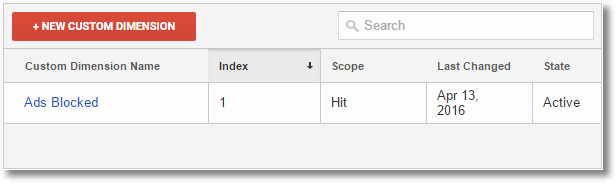
- Click on the red button named New Custom Definition
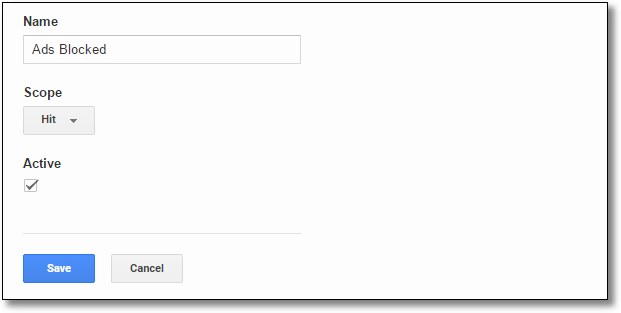
- Enter “Ads Blocked” in the Name and Click on Create button below
- In the next step, click on the SAVE button and your custom dimension is created
Create a New Segment in Google Analytics
- Go to Home > Audience > Overview
- Click on Add Segment
- Then Click on the red button named “New Segment”
- On the left-hand sidebar, you will see conditions under Advanced menu
- Click on the conditions
- On the Conditions panel, click on the “Ad Content” filter
- It will display a drop-down menu with search box on top
- If you type in “ads” it will show you the name of your custom dimension you created previously ie. Ads Blocked
- Click on it
Note: If you have limited access and are prohibited from searching, you can also scroll to the Custom Dimensions category and choose from there.
- In the next filter (under Include) choose “exactly matches” and in the box next to it, type in 1
- Give the segment a name, e.g, Ads Blocked and click on the save button next to it.

That’s it! You’re done configuring your advanced segment
Give it a week or so and you should be able to see the data
Create a Custom Report for users with Ad Blockers
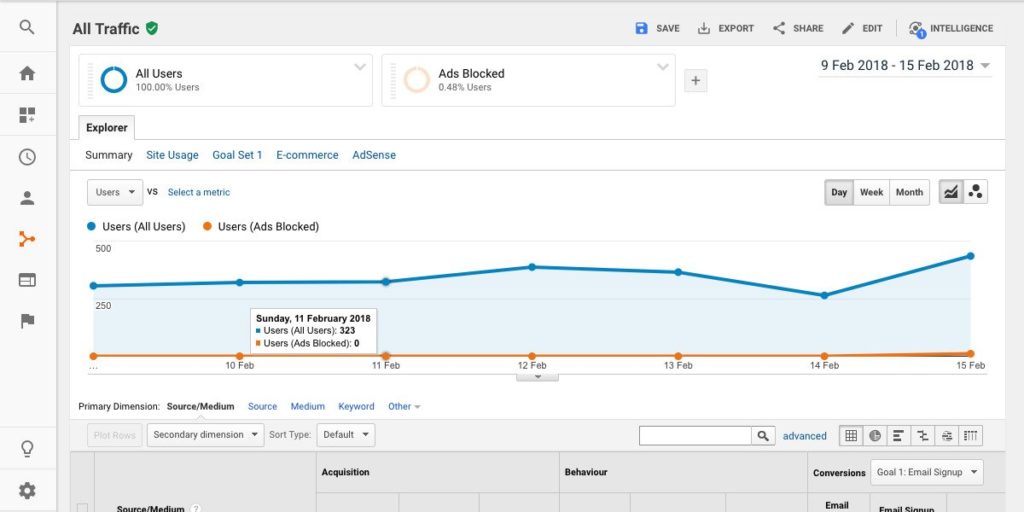
If you want to create a custom report, e.g, All users vs Ads Blocked, simply create a custom report in the following way:
- Go to Home > Acquisitions > All Traffic > Source/Medium
- To add a segment, ie. Ads Blocked or All Traffic, click on the + sign and then choose a segment name and click on Apply button.
Here’s what a custom report looks like.
That’s it!
I hope you find this guide useful. If you have any questions, leave a comment below.